iPhone Untrusted Enterprise App Fast Fix Guide
A short iPhone troubleshooting guide for the untrusted enterprise developer app warning, showing the path through Settings, General, VPN and Device Management, and the final trust confirmation step.
Hello, this is Izzingne. A few days ago, I downloaded an app I needed for work. The app installed properly on the home screen, but when I tapped the icon to run it, it said it was an untrusted enterprise developer app and would not open. I fixed it quickly, so I wrote this for anyone in the same situation.
Because it was not downloaded from the App Store, I understood the message as meaning there could be risks such as personal information leaks or viruses. When I tapped the icon, the app did not open and just closed. Still, the fix was simple.
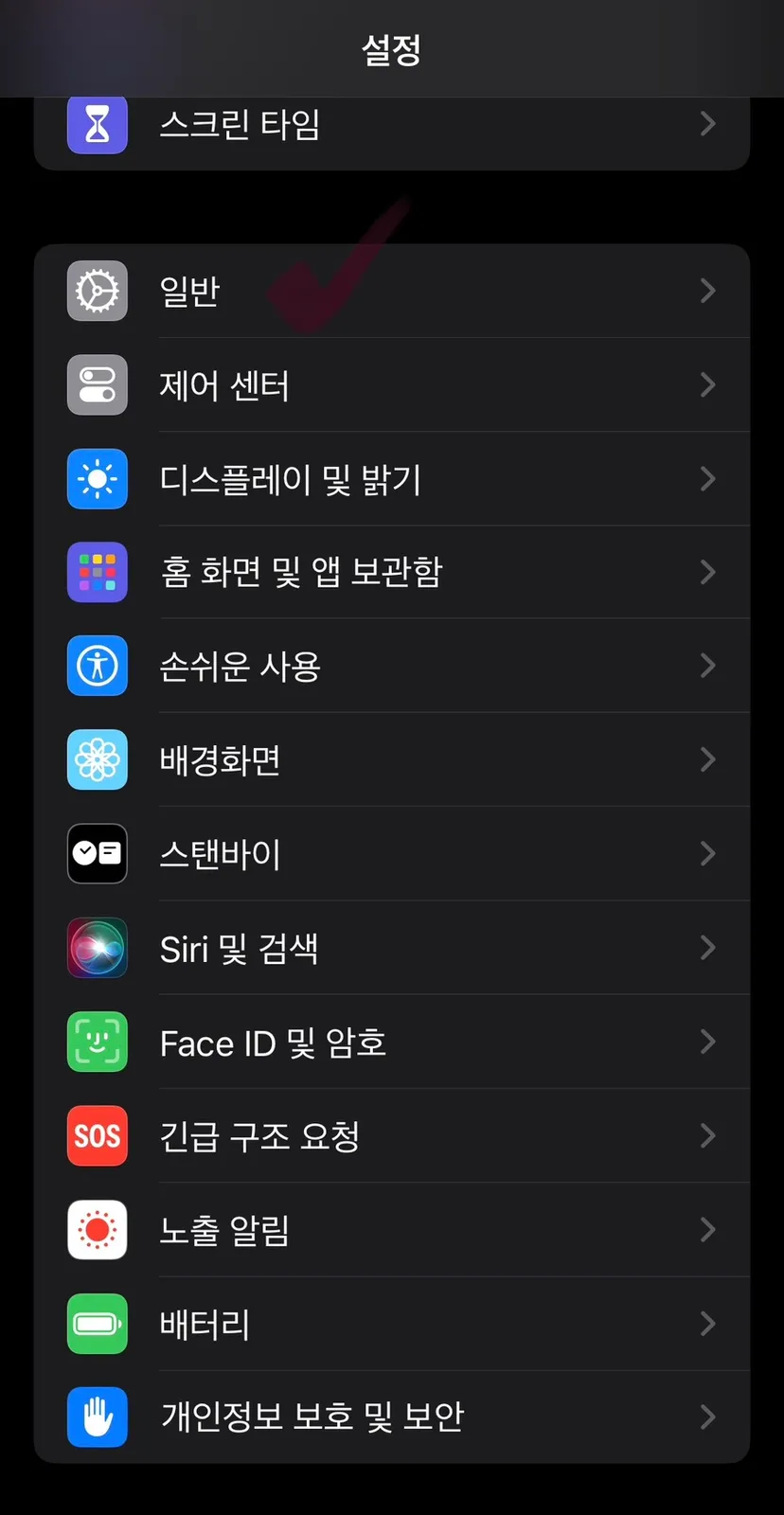
First, open Settings and choose General.
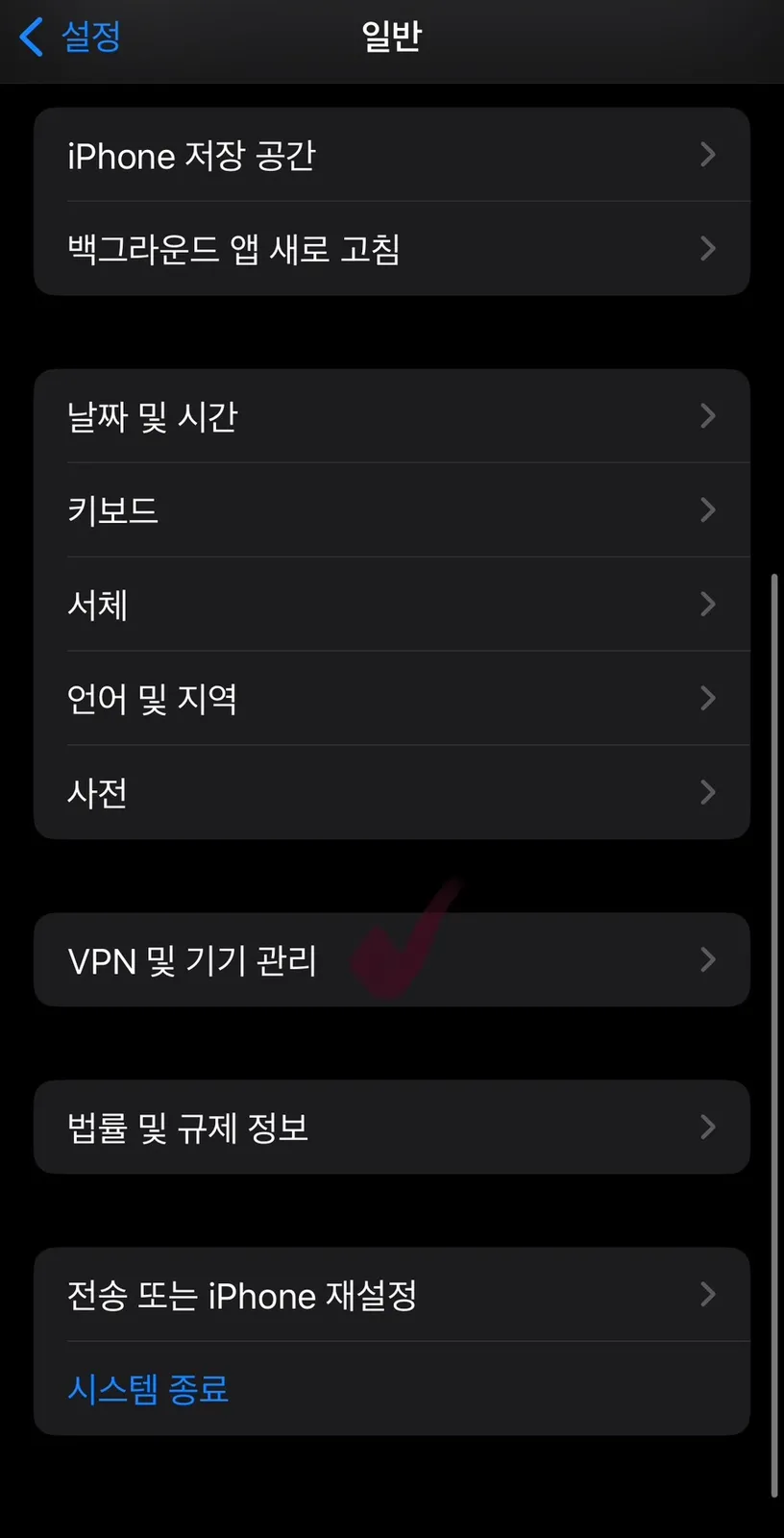
Scroll down a little and select VPN and Device Management.

Then you will see the enterprise app types together with a message saying they are not trusted. I had installed two apps, so two appeared.

Select the first app, and the screen will move to this page. In the blue area I blurred, it shows the app name plus Trust. Tap that part.

After that, it shows confirmation and the trust process is complete. If you run the app again, it should open normally. If you no longer need the app or want to delete it later, delete it the same way you would delete any other app. If you need an app but cannot open it, I hope these steps help.
Comments 0
More content
- Hwadam Forest in May: Monorail and Reservation TipsA spring visit to Hwadam Forest beside Gonjiam Resort, with notes on Yanolja reservations, monorail timing, parking, rest areas, photo spots, and an easy walking course.05/04/2026
- Fresh Tuna at Chamchiwang Kwon Tae-yoon in Gunpo SanbonA Sanbon Station Rodeo Street review of Chamchiwang Kwon Tae-yoon, where fresh, not frozen, tuna is sliced right away. Includes hours, seating, parking notes, and the Geumjandi 55,000 won course.04/28/2026

- Gichatgil Yeop Pojangmacha Anyang: Gwanak Station Outdoor PubA first visit to Gichatgil Yeop Pojangmacha in front of Gwanak Station Exit 2 in Anyang, with outdoor seating, Friday queues, mussel soup and spicy chicken feet.04/22/2026